


Category filter
How to execute custom scripts periodically on Windows
Executing scripts on managed devices is an efficient way for IT admins to perform various actions and retrieve information. However, in cases where scripts need to be executed multiple times a day or at regular intervals, manually deploying them each time would significantly reduce efficiency. In such instances, automating script execution is the ideal solution. The Scripts feature allows IT admins to execute custom scripts on Windows periodically, specifically during device startup and user logon.
How to schedule the periodic execution of scripts?
- Login to the Hexnode UEM console.
- Navigate to Policies > Windows > Configurations > Scripts and click Configure.
- Click Choose Scripts.
- In the Choose File dialog box:
- Choose script file source
- Select Upload file to upload the script to the Hexnode content repository.
- Select Hexnode repository to select a script already present in the Hexnode content repository. You can also use Hexnode Genie to generate a new script.
- File name – The file name will be auto populated based on the uploaded/selected script.
- Arguments – If the selected script includes arguments, enter them here, separated by spaces. If a single argument contains spaces, enclose it in single quotes. The field also supports the use of wildcards.
- Set output file path – Specify the location on the device where the script’s output should be stored.
- Choose script file source
- Click Configure.
- In the Script Configurations dialog box:
- Timeout – The script will be forcibly terminated if it does not complete execution within the configured time period. The timeout value can be set between 15 and 90 minutes.
- Execute scripts on – Select the event that should trigger the script execution: User logon or Device startup.
- Script frequency – Specify how often the script should be executed. The options are:
- Every user log on/device startup: Select the Execute till checkbox to specify the date until which the script should be executed.
- Subsequent user log on/device startup: Enter the number of subsequent logins (1 to 100) during which the script should be executed.
- Retry if the script execution fails: Select this option to retry the script execution if it fails.
- Maximum number of retries: Specify the number of retries for the script execution in case of failure, with a maximum of 5 retries allowed.
- Retry: Enter the time interval after which the script should be retried following the initial failure.
- Click Add.
- Associate the policy to the target devices by navigating to Policy Targets > +Add Devices.
- Select the target devices and click OK.
- Click Save.
Check script execution status from Hexnode UEM console
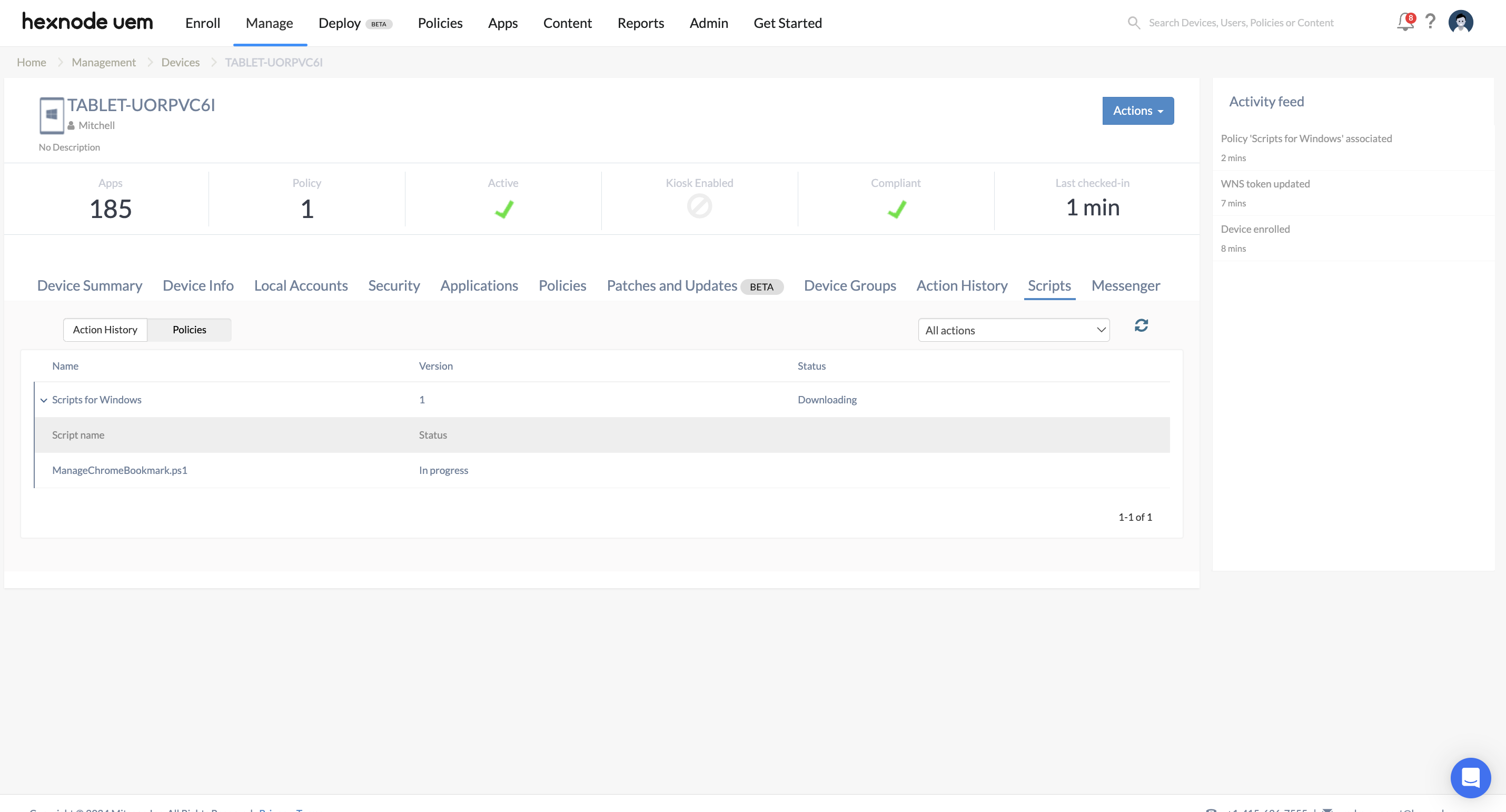
Once the policy is associated with the devices, you can view the status of the script execution under the Scripts sub-tab in the Manage tab of the respective devices.
Frequently Asked Questions
1. Does the “Success” status in the Action History guarantee that the script’s internal commands were executed as intended?
No. A “Success” status in the Hexnode console indicates that the command was successfully delivered to the Hexnode agent, and the script process completed with an exit code of 0. The admin should cross-reference this with the local output file (defined in the “Set output file path” field) to verify the results of the specific script logic.
2. Can a periodic script persist on the device after the Scripts policy is disassociated?
While the trigger for the script is removed upon policy disassociation, any changes the script made to the system (such as registry modifications or file creation) may remain. It is recommended that the admin prepares a “reversion script” if the modifications need to be explicitly undone.
3. How does the system determine if a script has “Failed” for the purposes of retry logic?
The Hexnode Agent monitors the exit code of the script process. If the script returns any value other than 0, it is considered a failure. In such cases, if the retry option is enabled, the agent will re-initiate the script according to the configured intervals and maximum retry limit.
Troubleshooting
1. Issue: The Scripts policy status remains “Pending” indefinitely in the Action History.
Probable Cause:
The device is currently offline, or the Hexnode Agent app is inactive.
Solution:
The admin should verify the device’s internet connectivity and ensure the Hexnode Agent is reporting an active status in the Enrollment details section under Device Summary page. Initiating a manual Sync from the Hexnode UEM app on the device can often resolve this.
2. Issue: The Scripts policy status shows “Success” in the Action History, but the intended change did not occur on the device.
Probable Cause:
The script was successfully delivered and completed with an exit code of 0, but the internal logic was flawed or required a system restart that was not performed.
Solution:
The admin should review the script’s output file (if configured) or if the setting requires a reboot, the admin should remotely trigger a Restart device action.
Best Practices
- Ensure Script Idempotency: The admin should design scripts so they can be run multiple times without causing errors or duplicate changes. For example, a script should check if a registry key already exists before attempting to create it.
- Optimize Timeout Settings: While the Scripts policy allows for up to 90 minutes, the admin should set the Timeout to the shortest duration necessary for the task. This ensures that a hung or looped process is terminated quickly, freeing up system resources.
- Validate on a Pilot Group: The admin should first associate the Scripts policy with a small pilot group of representative hardware. This allows the organization to detect environment-specific conflicts or performance impacts during boot or logon before a global rollout.


